When you plug a USB drive in, you might be interested in making a program, or other things happen as soon as you plug in. The way you accomplish this is through the Autorun.inf file. The autorun.inf file is located in the root of the usb drive and tells Windows what to do automatically.
This autorun can be used to make good, or bad USB’s depending on what you like.
This tutorial covers:-
Creating a USB Autorun.inf
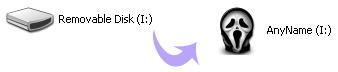
Changing label\icon of thumbdrive
Making a new option appear in the autorun menu
Making programs automatically run when plugged in
So Read On...
Creating a USB Autorun.inf :
And that’s it for this tutorial!
You can also follow these instructions when making a CD. You just have to burn it on the cd.
To create an autorun file, open Notepad and save ‘autorun.inf’’ (with quotes) and save it to the root of the drive. All it needs to have is in the first line;
[autorun]
Done!
[autorun]
Done!
Changing label\icon of thumbdrive:
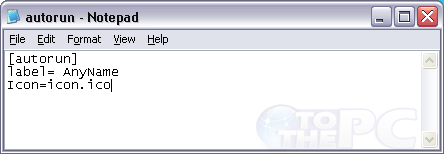
Follow the steps in Creating a USB Autorun.inf. Before you save it, type this in in this order!
[autorun]
icon=myicon.ico
label=MyLabel
And save. Make sure the icon file is in the root of your drive.
[autorun]
icon=myicon.ico
label=MyLabel
And save. Make sure the icon file is in the root of your drive.
Making a new option appear in the autorun menu:
Right, so make your autorun file and type this into Notepad:
[autorun]
icon=default
label=[yourlabelhere]
action=programname.exe
Save it and exit. Once again, the program has to be in the root. Now, when you plug it in, the option should appear in the menu.
[autorun]
icon=default
label=[yourlabelhere]
action=programname.exe
Open Program
Save it and exit. Once again, the program has to be in the root. Now, when you plug it in, the option should appear in the menu.
Making programs automatically run when the USB is plugged in:
Follow the same instructions, blah blah blah;
[autorun]
Icon=default
label=YourLabelHere
open=programname.exe
[autorun]
Icon=default
label=YourLabelHere
open=programname.exe